
Verbatim Voices
How it works
Eight short steps from a transcript file to a recording you can listen to, download, and delete.
The screenshots below are from a test run with an invented hearing and sample amounts. The dollar figure in the screenshot is not our price. See Pricing.
-
1. Get an invite
Right now uploads are open by invite code only. Write to [email protected] to ask for one. The invite is tied to the email address where your ready notice will go.
-
2. Upload your transcript
Go to verbatimvoices.com/upload, read the short privacy notice, type your invite code and choose a PDF or text file (up to 40 MB). Upload only a file you have the right to use. Your file goes straight into encrypted storage.
File size: Maximum file size is 40 MB. That’s about 1,000 pages of a typed transcript, or about 40 to 130 pages if your document is a scan (a PDF made from photos of each page).
-
3. Wait for the price
We read the file and count what will be spoken. If a scanned page is too poor to read reliably, we stop and tell you instead of guessing. No voice is used for this step. This usually takes a short while.
-
4. Look at the cost and agree (or don't)
You will see the number of pages, about how long the recording will be, and the cost. Stay on the page as long as you like. Closing it means nothing is made and nothing is charged.
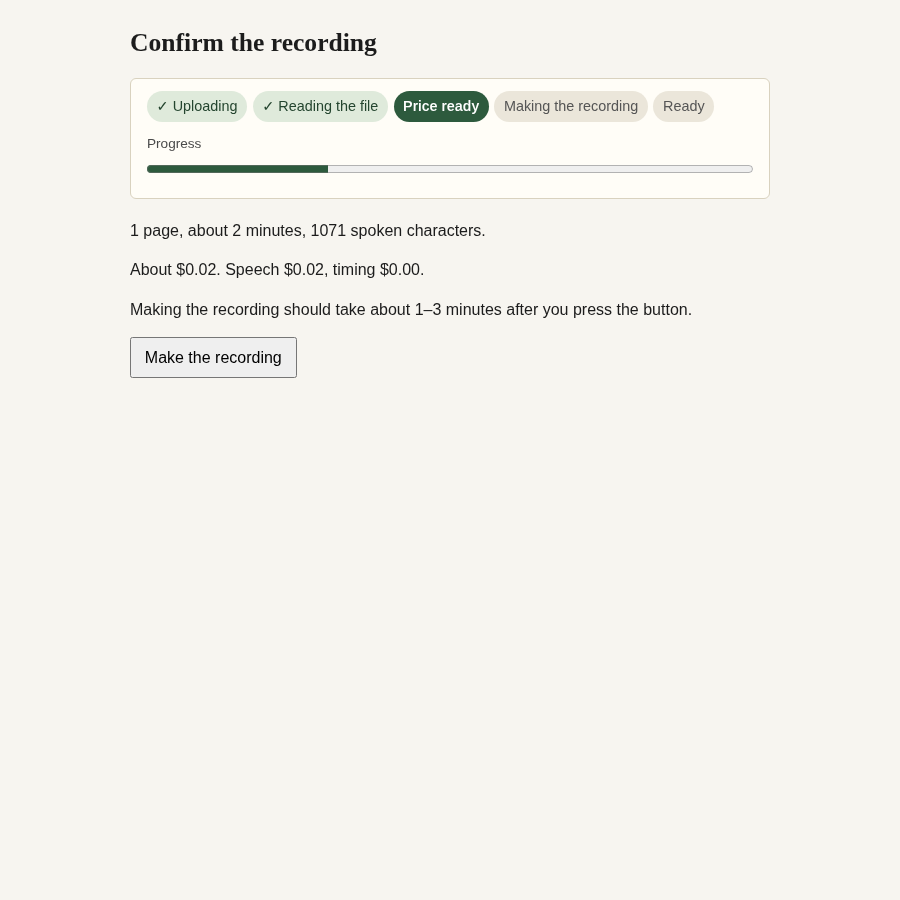
The quote screen: length, cost, a time estimate, and a Make the recording button. (Sample amounts from a test file.) -
5. Press "Make the recording"
Only when you press the button does the recording start. A progress bar and a rough time-left estimate show where things stand. You do not need to keep the page open.
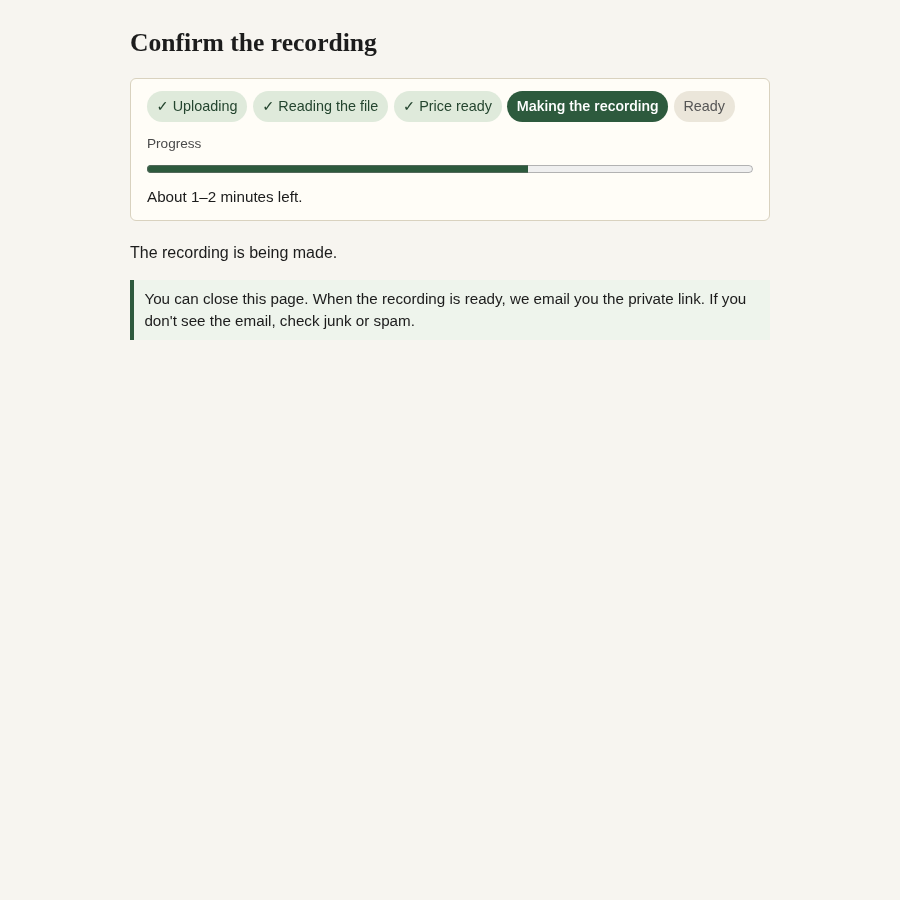
While the recording is made, the page shows the stage, a progress bar and a rough estimate. -
6. Look for the ready email (check junk or spam)
When the recording is ready, we email your private link. The email contains only the link and the time it will be deleted, never your document's words. If you do not see it, check your junk or spam folder, because new senders sometimes land there.
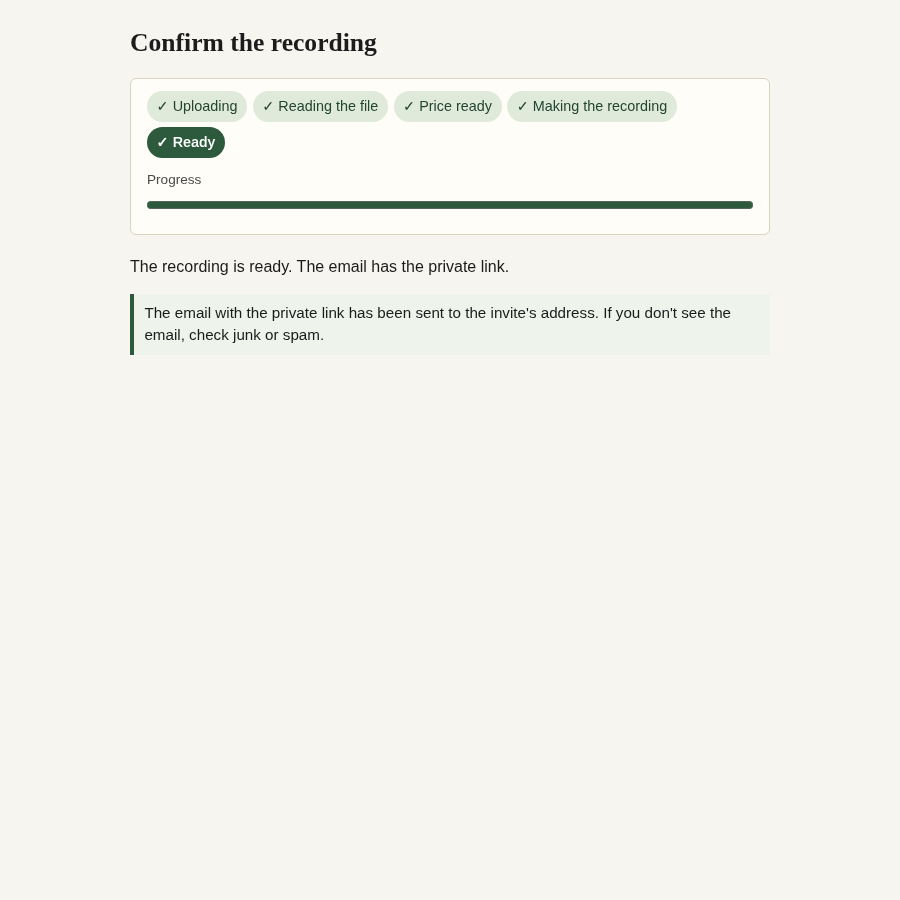
The ready screen reminds you to check junk or spam. -
7. Listen, and click to jump
Your private listen page shows the text next to the audio player. Click any line or any word and the audio jumps to that moment. A short summary (the Docket Brief) plays first, clearly labelled as a summary and not part of the verbatim record. The full recording follows it.
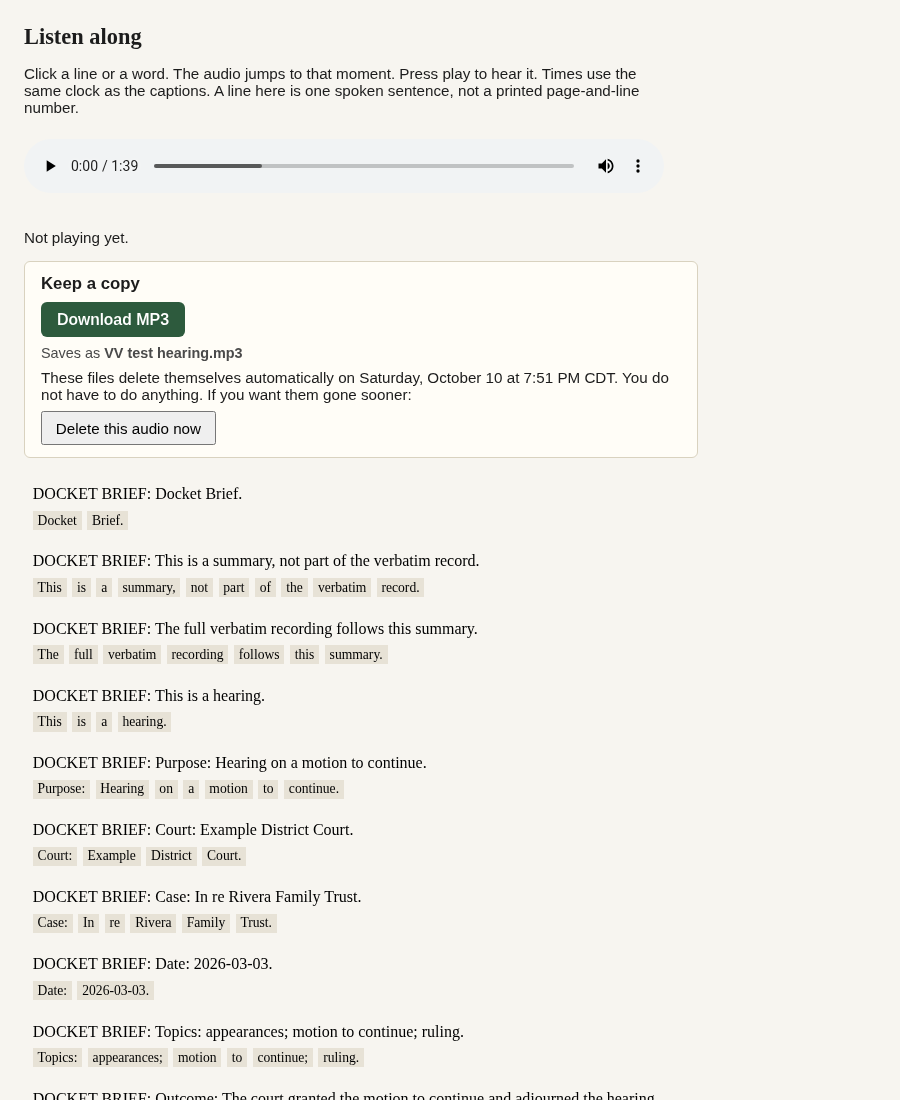
The listen page: player, Download MP3, Delete now, and the text you can click. -
8. Download the MP3, then delete it or let it expire
Press Download MP3. The file is saved under the name of the file you uploaded, so VV test hearing.txt becomes VV test hearing.mp3. If you do not have the original name, it is saved as verbatim-voices-audio.mp3.
Once you have your copy, press Delete this audio now and everything is removed. If you do nothing, everything deletes itself automatically 48 hours after the recording is ready. The deletion time is shown on the listen page and in the email.
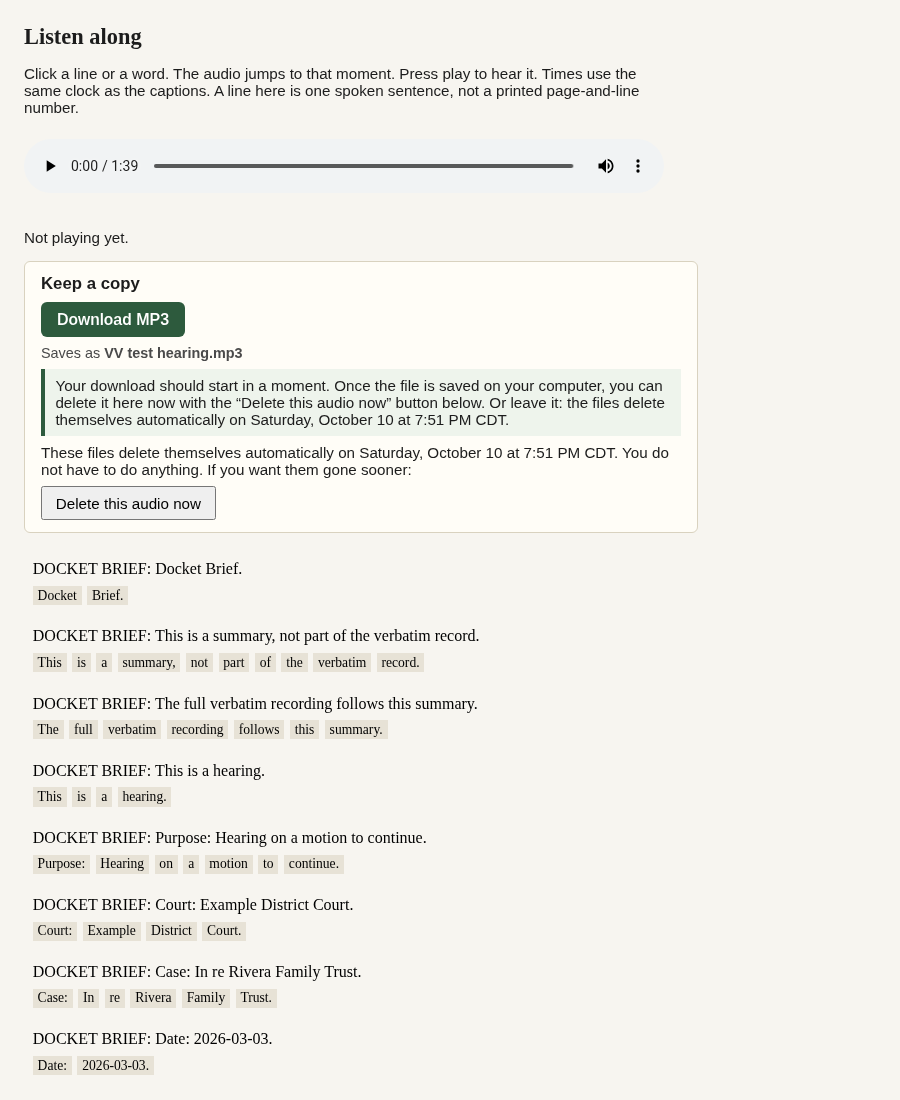
After you press Download, the page reminds you that you can delete now or let it expire.
Good to know
- Anyone who has your private link can listen until the files are deleted. Do not forward it unless you mean to.
- Right now an invite can have one job in progress at a time, and up to five starts a day.
- The audio is a convenience copy. The written transcript is the official record. See Accuracy and limits.
- Details on storage and deletion are on the Privacy page.
Coming later
These are planned and not available yet: a highlighted video, SRT and VTT caption files, a full download package, and an accuracy report called "Places the listener still wants a person to check".